Not everybody is as confident with Microsoft Access databases as you are. Most users feel intimidated and afraid – rightly so – to make mistakes. So make their use of the database easier with big navigation controls. In a previous tip, you learned how to Find records faster with a dropdown in Microsoft Access forms, today you will see how to replace the small navigation buttons in Microsoft Access forms with large, non-threatening, user-friendly buttons.


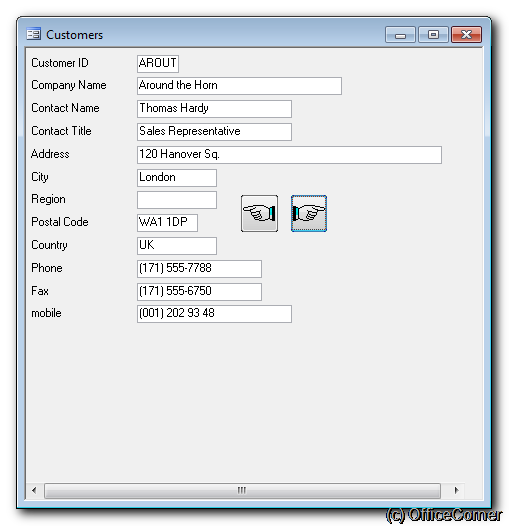
Video: Make Microsoft Access forms more user-friendly with big navigation controls
Adding command buttons for navigation to a form
- Switch to Design view

- Display the Toolbox if it is not visible by clicking Toolbox

- Click Command Button on the toolbox

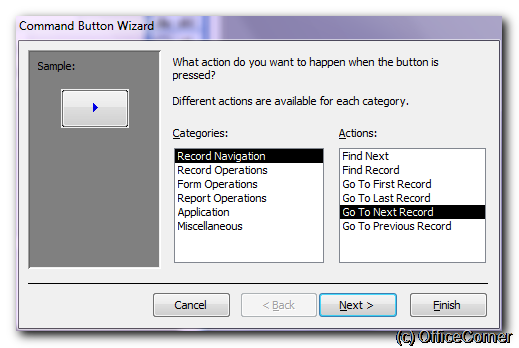
- Follow the steps of the Command Button Wizard
- choose the type of button and associated command
- change the appearance if required
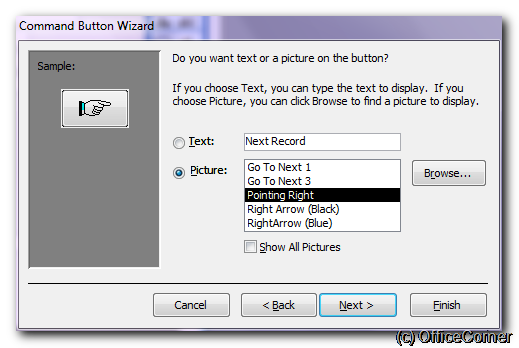
- assign a name to the button (useful if you further programme the form)

- choose the type of button and associated command